
Node-RED meets KNX
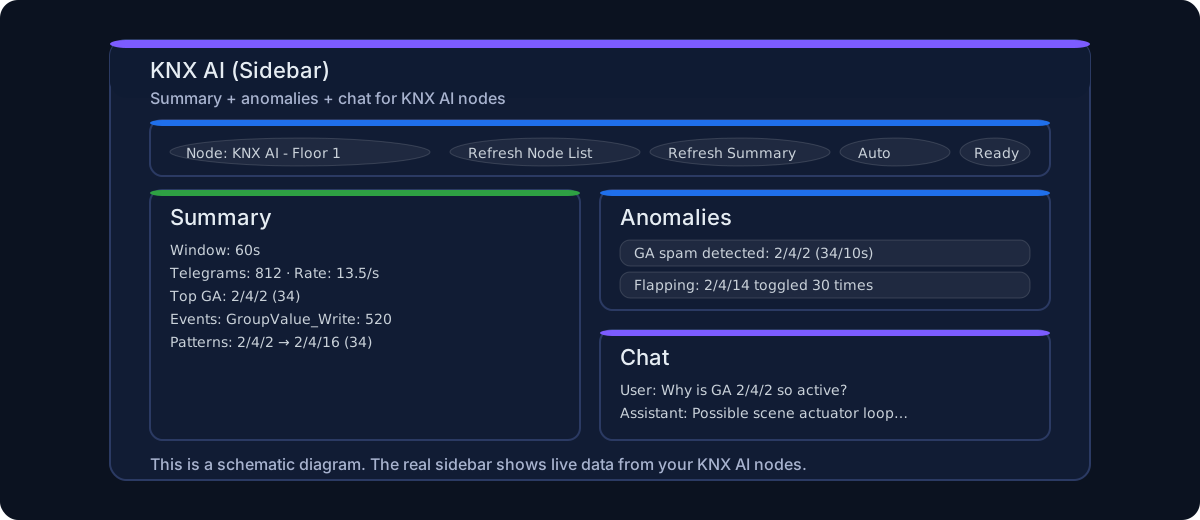
The KNX AI Dashboard helps you monitor your KNX system in a simple way.
You can see what is happening, find anomalies, run tests, and ask questions in plain language.
This page keeps the historical name KNX-AI-Sidebar for compatibility.
What you can do
- Check the system status at a glance.
- See which group addresses are most active.
- Create and manage areas with AI support.
- Run guided tests and read clear results.
- Ask the assistant “what is wrong?” and get quick suggestions.
- Generate a ready-to-import Node-RED flow from a plain-language description (Flow Builder, BETA).
Open it quickly
- Open it from the KNX AI node editor with Open Web Page.
- Select your KNX AI node from the list.
- Press Refresh if needed.
Main sections (simple guide)
- Overview: live summary and activity.
- Areas: rooms/zones and related group addresses.
- Tests: prepare and run checks.
- Test Results: pass/warn/fail history.
- Ask: type a question in natural language. If disk archive is enabled in the node, Ask searches archived telegrams by default and falls back to the last 24 hours when no explicit date is provided.
- Flow Builder (BETA): describe an automation in plain words and get a Node-RED flow (JSON) to paste into the editor.
- Settings: node selection and import/export.
Flow Builder (BETA)
Turn a sentence into a working Node-RED flow.
- Open Flow Builder and write what you want, for example: “When the corridor light turns on, switch on the ground-floor bathroom light and turn it off after 10 seconds.”
- Press Generate flow. The AI builds the flow using KNX Ultimate nodes, the Philips Hue nodes and native Function/logic nodes, wired to your imported group addresses.
- Press Copy JSON, then in Node-RED open Menu > Import and paste it.
Good to know:
- It is BETA: review the generated nodes before you deploy.
- Node ids and wiring are rebuilt automatically, and KNX/Hue config references point to your existing config nodes.
- Works with any configured LLM provider (OpenAI-compatible, Anthropic/Claude, or Ollama).
First guided workflow
- Start in Overview and check if the system looks stable.
- Open Areas and verify rooms/zones are meaningful.
- If needed, use Regenerate AI Areas to rebuild suggestions.
- Open Tests, run one test, then check Test Results.
- In Ask, describe the issue in one sentence and follow the suggested checks.
Buttons you will use most
- Refresh: update data immediately.
- Regenerate AI Areas: rebuild AI area suggestions from ETS addresses.
- Delete AI Areas: remove all AI-generated areas at once.
- New Area: create one area manually.
While AI is working
When areas are being generated or deleted, a centered waiting screen appears. This is normal: the page blocks clicks until the operation ends, to prevent accidental changes.
Requirements
- At least one configured KNX AI node.
- A gateway connected and running.
- For chat answers and Flow Builder: LLM enabled in the KNX AI node, with a provider configured — OpenAI-compatible, Anthropic (Claude), or Ollama (local). An API key is required for cloud providers.